Color Image Segmentation
Image segmentation is the isolation of a region of interest (ROI) from its background. If the ROI has the same grayscale values as the background, proper segmentation cannot be done in grayscale by thresholding.
Consider the image below, where the apples are the region of interest. By inspection of its histogram and its grayscale version, it is apparent that the color of the ROI is almost the same as the background.

Figure 1. Image to be segmented. Courtesy of http://extension.missouri.edu/publications/DisplayPub.aspx?P=G6021

Figure 2. Image converted to grayscale.

Figure 3. Histogram of the image to be segmented.
Since 3D objects have shading variations, it is better to represent color space into brightness and chromaticity information. Such color space is the normalized chromaticity coordinate (NCC). Each pixel is represented by I = R + G + B thus the normalized chromaticity coordinates are


and transform color RGB into NCC using the equations above.
ROI = imread('patch.jpg');
R = ROI(:, :, 1);
G = ROI(:, :, 2);
B = ROI(:, :, 3);
I = R + G + B;
r = R./I;
g = G./I;
Parametric segmentation
In parametric segmentation, the probability p(r) that a pixel with chromaticity r belongs to the region of interest is given by

A Gaussian distribution is assumed along r and g, and the mean and the standard deviation are computed from the pixel samples.

Figure 5. Parametric segmentation.
Non-parametric segmentation
For non-parametric segmentation, the 2D histogram of the region of interest was obtained to be used for histogram backprojection. To test if the histogram is correct, the locations of its peaks can be compared to the rg chromaticity diagram as shown in Figure 6.
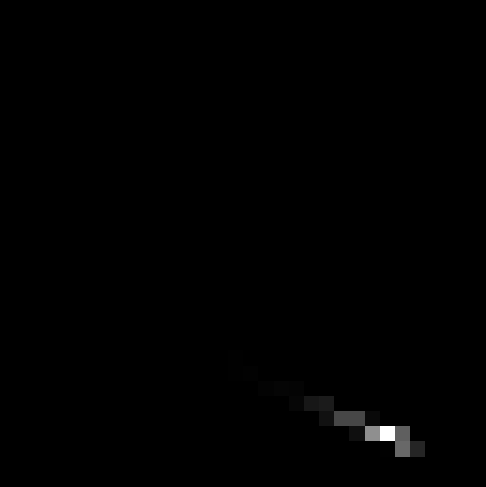
Figure 6. 2D histogram of the region of interest.

Figure 7. Normalized chromaticity space.

FIgure 8. Non-parametric segmentation
Comparing the results of both methods, I would say that parametric segmentation is better because the image was smoother and cleaner.
I give myself 9/10 for this activity.
Color Camera Processing
Images captured using a colored camera can sometimes come out with an unsightly blue, orange, or green color cast to them even though the original scene looked normal. Proper white balancing removes these unrealistic color casts so that white objects in the image appear white and the other colors are properly rendered. Our eyes automatically adjust to colors under different sources of light, however cameras usually have difficulty in automatic white balance. Thus digital cameras now have different white balance settings appropriate for different illumination conditions under which an image will be taken. They give rough estimates for the actual lighting they work best under.
Shown below are images of colored papers under daylight fluorescent lighting. A Samsung BL103 digital camera was used to capture the photos under different white balancing settings – automatic, tungsten, cloudy, daylight, fluorescent1 (daylight fluorescent light), and fluorescent2 (white fluorescent light). To ensure that the images will not go beyond the maximum pixel value, Exposure Value (EV) was set to a low value, that is, -1.

Figure 1. Different white balancing settings of images taken under daylight fluorescent lighting.
Notice that the image taken under cloudy setting is yellowish whereas the images taken under daylight, tungsten, and white fluorescent light settings are bluish. As expected, the automatic and daylight fluorescent settings more or less captured the proper colors of the objects. The wrongly balanced images can be corrected using either of the two algorithms for automatic white balancing.

Figure 2. Results after implementation of the white balancing algorithms.
After implementation of the algorithms, the images obviously became brighter. Although the color of the white object was corrected for both algorithms, the White Patch seemed to work better than the Gray World because the colors of the other objects are more vivid. In the gray world algorithm, some of the colors are indistinguishable especially blue and green.
We now the algorithms to an image with an ensemble of objects having the same color, taken under a white balancing setting not appropriate for the illumination condition.

Figure 3. Original image (left) after implementation of the White Patch Algorithm (middle) and the Gray World Algorithm (right).
Again, the white patch algorithm seemed to produce better images. On the other hand, the gray world algorithm image looks too bright and saturated.
For this activity, I give myself 10/10 since I was able to produce all that was required.
Binary Operations
Binarizing an image at an optimum threshold enables us to separate the background from the region of interest (ROI). However, when there is an overlap in the graylevel distribution of background and ROI, the binarized image may need to be further cleaned by morphological operations. Examples of such operations are opening and closing. The closing operation is dilation followed by erosion of the same structuring element whereas the opening operation is the reverse. This activity aims to integrate these operations and other image processing techniques to determine the best estimate of the area in pixel count of simulated cells.
Area estimation of normal cells

Figure 1. An image of scattered punched paper under a flatbed scanner. Imagine these circles as "normal cells" under a microscope.
As a start, the image above was cut into seven subimages of dimensions 256×256. The grayscale histogram of each subimage was examined to find the optimum threshold for its binarization, such that the noise in the background is minimal. For each of these subimages, the closing and opening operators were applied using circle structuring elements to close off the holes and remove background noise respectively.

Figure 2. (a) Original subimage (b) Binarized subimage at optimum threshold (c) Cleaned subimage after application of morphological operations.
bwlabel was used to label each contiguous blob on the binarized image and measure for their area in pixel count. These are implemented in Scilab as follows.
count = 1;
for i=1:7
  I = gray_imread("C_0"+string(i)+".jpg");
  im = im2bw(I,0.85);
  im = dilate(im,SEclose,[13,13]);  //closing
  im = erode(im,SEclose,[13,13]);
  im = erode(im,SEopen,[13,13]);    //opening
  im = dilate(im,SEopen,[13,13]);
  [L,n] = bwlabel(im);
  for j=1:n
    blob = (L==j);
    area(count) = sum(blob);
    count = count + 1;
  end
end
The areas of the blobs measured for all subimages were tallied to find the range of the most detected areas.
histplot(length(area),area);

Figure 3. Histogram of the areas detected for all cleaned subimages.
Zooming in this histogram, the most detected areas fall under the range of 490 to 600. We now calculate for the average area of cells in this range.
values = find(area>490 & area<600);
R = area(values);
Area = mean(R);
SDev = stdev(R);
Results:
Average area: 517.80769
Standard deviation: 12.515652
To verify the result, the area of a single cell was computed giving us a value of 526.
Isolation of cancer cells
Now consider the image of punched papers wherein some cells are larger than the rest. The goal is to isolate cancer cells represented by the enlarged cells.

Figure 4. Another set of digitized punched papers with some cells bigger than the rest.
Since we have already computed for the range of values for the average size of the normal cells, we can now isolate the enlarged cells by applying the opening operator using a structuring element slightly larger than the normal cells. The following is the resulting image, wherein all five cancer cells were isolated.

Figure 5. Isolated abnormal cells after application of opening operator.
For this activity, I give myself a score of 10/10.
 image processing