Area estimation of images with defined edges
AREA OF REGULAR SHAPES
For this activity, the goal is to investigate the accuracy of Green’s theorem in estimating the area of images. It is given by

The images tested were of regularly shaped objects created in Paint. Then using the follow command in Scilab’s SIP toolbox, the pixel locations of the object’s edge were determined. Take note that there should only be one object in the image and it must be in binary (object is white, background is black). Green’s theorem was then implemented as follows.
image = imread('<image file>'); [x,y] = follow(image); lx = length(x); ly = length(y); xnew(1) = x(lx); ynew(1) = y(ly); xnew(2:lx) = x(1:lx - 1); ynew(2:ly) = y(1:ly - 1); //area using Green's theorem A = 0.5*abs(sum((x.*ynew)-(y.*xnew)))The pixel values of the contour were then used to compute the area of each shape analytically.
//theoretical area of rectangle TA = (max(x)-min(x))*(max(y)-min(y)) //theoretical area of circle TA = %pi*(((max(x)-min(x))/2)^2) //theoretical area of triangle TA = (1/2)*(max(x)-min(x))*(max(y)-min(y))Results:
LARGE RECTANGLE A = TA = 22785 % error = 0
SMALL RECTANGLE A = TA = 2256 % error = 0
LARGE CIRCLE A = 27044 TA = 26880.252 % error = 0.61%
SMALL CIRCLE A = 970 TA = 1017.876 % error = 4.70%
LARGE TRIANGLEA = 16418.theoretical = 16284.%error = 0.82%
SMALL TRIANGLEA = 3583.5theoretical = 3483.% error = 2.88%Upon comparing the results, I must say that Green’s theorem is not always accurate. It is only favorable for shapes with smooth and straight edges such as squares and rectangles. The differences between the values for each method can be duly observed in shapes with curved or diagonal edges. Zooming in the image of the circle and triangle, it can be seen that their edges are not smooth. As the object becomes smaller, the accuracy of the Green’s theorem also decreases.
—————————————————————————————————————————————————
AREA OF IRREGULAR SHAPES
Here is an image from Google Maps showing the location of SM Clark. I estimated its area in square meters by applying Green’s theorem and the technique used in the first activity.
Dimensions: 488 x 704
A. Estimation of the area using Green’s theorem
1. Unnecessary details in the background of the image were eliminated to estimate the area of the object easily.
2. The histogram of the grayscale version of the image was then plotted. By examining the histogram, the threshold value was estimated at 225 to separate the background from the region of interest.
image = imread('<image file>'); histplot(0:255, image);
3. The image was converted to binary using the threshold value obtained, which is 0.88.bw = im2bw(image, 0.88);
imshow(bw, []);
4. The colors of the image were inverted to enable application of follow function. The code for Green’s theorem shown above was again used to compute for the area.
image = 1-image; imshow(image,[]);
Result:
Area = 178758 pixels
B. Estimation of the area using analytic method
1. The pixel locations of the endpoints of the object were determined using Paint.
2. Since the object is an irregular polygon, the object was divided into two triangles.
3. The obtained pixel locations were substituted in the distance formula to find the height and base of each triangle.
4. The universally accepted formula for the area of a triangle was used.
5. The two areas were added to get the total area of the lot in pixels.
Result:
Area = 178927.9 pixels
C. Conversion to square meters
1. The scale in the map was used as a basis for converting area from pixels to square meters. The pixel locations of its tick marks were determined.
2. The pixel locations of tick marks were subtracted.
3. The number of physical values (100 m) was divided by the number of pixels between the tick marks (88 pixels).
4. The result was multiplied to the areas acquired from A and B.
Results:
TOTAL AREA USING GREEN’S THEOREM: 207858.1 square meters
TOTAL AREA USING ANALYTIC METHOD: 208055.7 square meters
% ERROR = 0.09%
—————————————————————————————————————————————————
Self Evaluation: I give myself a 10 since the percent deviations of the results were reasonably small.
—————————————————————————————————————————————————
Reference:
Soriano, M. Area estimation of images with defined edges. 2010


Image Types and Formats
Image Types
The following are basic image types obtained from different internet sites. Scilab’s imfinfo function can be used to display the image properties.
1. Binary images are composed of only two possible pixel values, either 0 (black) or 1 (white) .

Photo from MathWorks.
FileSize: 3214 Format: PNG Width: 256 Height: 256 Depth: 8 StorageType: indexed NumberOfColors: 2 ResolutionUnit: centimeter XResolution: 72 YResolution: 722. Grayscale images are composed of pixel values between 0 (black) and 255 (white). These images are produced with varying shades of gray.
Photo from Darren Hester.
FileSize: 86990 Format: JPEG Width: 740 Height: 493 Depth: 8 StorageType: indexed NumberOfColors: 256 ResolutionUnit: inch XResolution: 300 YResolution: 300
3. True color images have 1.6 million possible colors obtained by overlaying three channels (red, green and blue).Photo from Missouriplants.
FileSize: 41843 Format: JPEG Width: 450 Height: 449 Depth: 8 StorageType: truecolor NumberOfColors: 0 ResolutionUnit: inch XResolution: 72.000000 YResolution: 72.0000004. Indexed images have colors represented by their index values in the color map.
Photo from Astrophysics Research Centre.
FileSize: 27065 Format: GIF Width: 248 Height: 248 Depth: 8 StorageType: indexed NumberOfColors: 256 ResolutionUnit: centimeter XResolution: 72.000000 YResolution: 72.000000
In addition to those aforementioned are the advanced image types.
1. High dynamic range (HDR) image
Photo from Smashing Magazine.
2. Multi or hyperspectral image
Photo from ITC.
3. 3D image
Photo from 3d-image.net
4. Temporal image or video
———————————————————————————————————————————————————————————————————————————————–
Image Formats
Digital image file formats differ in compression schemes: lossy or lossless. Lossy image compression degrades the image to convert it to a more compact size. The decrease in resolution may not be noticeable to the human eye depending on its compression ratio. Lossless image compression does not disregard any pixel information, resulting to large files. Each image format has its pros and cons. It is therefore necessary to consider the image’s application in choosing the best format for its storage. Some of the common file formats are the following.
TIFF (Tagged Image File Format) is a decent lossless image storage format which uses no compression on the images. It is perfect for the manipulation of high quality photographic images, since it does not degrade the image with each save. Its downsides are: it produces large image files and it is not supported by web browsers.
PNG (Portable Network Graphics) can be lossy or lossless. It uses patterns in the image for compression. Unlike TIFF, this image format is supported by web browsers.
JPEG (Joint Photographic Experts Group) is a lossy image format usually used for photographic images. It can compress images while maintaining high quality outputs. However, it should never be used for line art or anything with sharp edges.
GIF (Graphics Interchange Format) is limited to 256 colors only. It is ideal for graphic images with less than or equal to 256 colors. It is not practical to use in rich, truecolor images since it will only produce lossy images.
BMP (Windows bitmap) is an uncompressed image format that produces large files. It is advantageous to Microsoft Windows OS users.
———————————————————————————————————————
Now, take a look again at the true color image in the examples above. It can be converted to binary and grayscale by using Scilab’s im2bw and gray_imread functions.
True color converted to binary.
True color converted to grayscale.
//conversion to binary image = imread('<file>'); bw = im2bw(image, 0.4); imshow(bw, []); //conversion to grayscale image = imread('<file>'); gr = im2gray(image); imshow(gr, []);
—————————————————————————————————————————-
Now, consider the scanned image in the first activity, Digital Scanning. It has a matrix size of 2338 x 1770 x 3 which affirms that it is a true color image. We then manipulate this image and convert it to binary by thresholding. To do this, a histogram that displays the image’s intensity at certain pixel values was created. This will help identify a reasonable threshold value to eliminate unnecessary noise from the image. The pixels with an intensity less than the threshold value will be assigned to black whereas those above the threshold value will be assigned to white. For the scanned image, a threshold value of 0.9 was used.
//histogram image = gray_imread('<scanned image>'); histplot(256, image);Histogram of the scanned image.
The following are the results in the manipulation of images using Scilab.
Scanned image.
Scanned image converted to grayscale.
Scanned image converted to binary.
———————————————————————————————————-
I would like to thank Me-an and Jonats for helping me in this activity. 🙂
Self evaluation: I would like to give myself a grade of 10 for the effort and for completing the requirements of this activity.
———————————————————————————————————-
References:
- Matthews, R. Digital Image File Types Explained.
- Wikipedia. Image file formats.
- Green, B. Histogram, Thresholding and Image Centroid Tutorial.
- Soriano, M. A3 – Image Types and Formats





Scilab Basics
Scilab is an open-source programming language designed specifically for scientific computations. It has similar features and syntax with Matlab thus practical for the manipulation of matrices. By application of the basic operations in Scilab 4.1.2 and Signal and Image Processing (SIP) Toolbox, synthetic images can be easily created. As an example, consider the following image of a circular aperture.

Circular Aperture
To produce this, the following code should be executed in Scilab.
nx = 100; ny = 100; //defines the number of elements along x and y
x = linspace(-1,1,nx); //defines the range
y = linspace(-1,1,ny);
[X,Y] = ndgrid(x,y); //creates two 2-D arrays of x and y coordinates
r= sqrt(X.^2 + Y.^2); //note element-per-element squaring of X and Y
A = zeros (nx,ny);
A (find(r<0.7) ) = 1;
imshow (A, []);
Here, the space matrix A corresponds to the size of the whole image. When a certain element is assigned a value of 1, it will turn out white whereas that assigned a value of 0 will turn out black. These conditions were used to simulate the following synthetic images.
CENTERED SQUARE APERTURE

Centered square aperture
Here, the midpoints along x and y were obtained to determine the center of the image. Then a value of 1 was assigned to a range from the left and right of the center (in this case: 100) thus forming a square.
nx = 500; ny = 500;
x = linspace(-1,1,nx);
y = linspace(-1,1,ny);
[X,Y] = ndgrid(x,y);
A = zeros (nx,ny);
A((nx/2) – 100: (nx/2) + 100, (ny/2) – 100: (ny/2) + 100) = 1;
imshow (A, []);
SINUSOID

Sinusoid along x-direction
To produce a sinusoid along the x-direction, the sine function is simply applied to the X values multiplied by a certain frequency.
nx = 100; ny = 100;
x = linspace(-1,1,nx);
y = linspace(-1,1,ny);
[X,Y] = ndgrid(x,y);
A = sin(20*X);
imshow (A, []);
GRATING

Grating along x-direction
For a grating in the x-direction, the elements along x were divided into parts. Then a value of 1 was assigned to certain elements.
nx = 500; ny = 500;
x = linspace(-1,1,nx);
y = linspace(-1,1,ny);
[X,Y] = ndgrid(x,y);
A = zeros (nx,ny);
A(1:(nx/10), 1:ny) = 1;
A((nx/10)*2:(nx/10)*3, 1:ny) = 1;
A((nx/10)*4:(nx/10)*5, 1:ny) = 1;
A((nx/10)*6:(nx/10)*7, 1:ny) = 1;
A((nx/10)*8: nx, 1:ny) = 1;
imshow (A, []);
ANNULUS

Annulus
The code for this is basically the same as that of the circular aperture; only it has an additional condition for the values of the elements of matrix A. The innermost circle with radius less than 0.4 was assigned with a 0 value.
nx = 500; ny = 500;
x = linspace(-1,1,nx);
y = linspace(-1,1,ny);
[X,Y] = ndgrid(x,y);
r= sqrt(X.^2 + Y.^2);
A = zeros (nx,ny);
A (find(r<0.7) ) = 1;
A (find(r<0.4)) = 0;
imshow (A, []);
CIRCULAR APERTURE WITH GAUSSIAN TRANSPARENCY

Circular aperture with Gaussian transparency
For this, a two dimensional Gaussian function was used.
nx = 500; ny = 500;
x = linspace(-1,1,nx);
y = linspace(-1,1,ny);
[X,Y] = ndgrid(x,y);
G = exp(-5*X.^2 -5*Y.^2);
imshow (G, []);
Self evaluation: 10/10
P.S. I would like to thank Joseph Bunao for guiding me through this activity. 🙂
Digital Scanning
Today’s activity aimed to reproduce a digitally scanned hand-drawn plot. Thanks to software like Paint and Microsoft Excel, the steps became pretty simple. The one I used (shown below), was from an article in the Canadian Journal of Research around the year 1939. I apologize for not being able to note down the title and the author.

Digitally scanned hand-drawn plot. This plot was from an article in the Canadian Journal of Research.
To be able to obtain physical values equivalent to the pixel values in the image, a “scaling factor” must first be computed. Consider the equation of a line:
y = mx + b
The values of y are the physical values for both axes in the graph, whereas the values of x are the corresponding pixel locations.
Using Paint, the pixel locations of the tick marks in each axis and also the origin were noted. These were important for the computation of the distances between tick marks. Then, the actual tick mark intervals (i.e. 50 for the x-axis and 100 for the y-axis) must be divided by the corresponding pixel intervals between them. The average value of these quotients would be the slope m for the line equation. From here, the values of b could be computed. The results are tabulated in the following tables.

- Tabulated values for x-axis and y-axis.
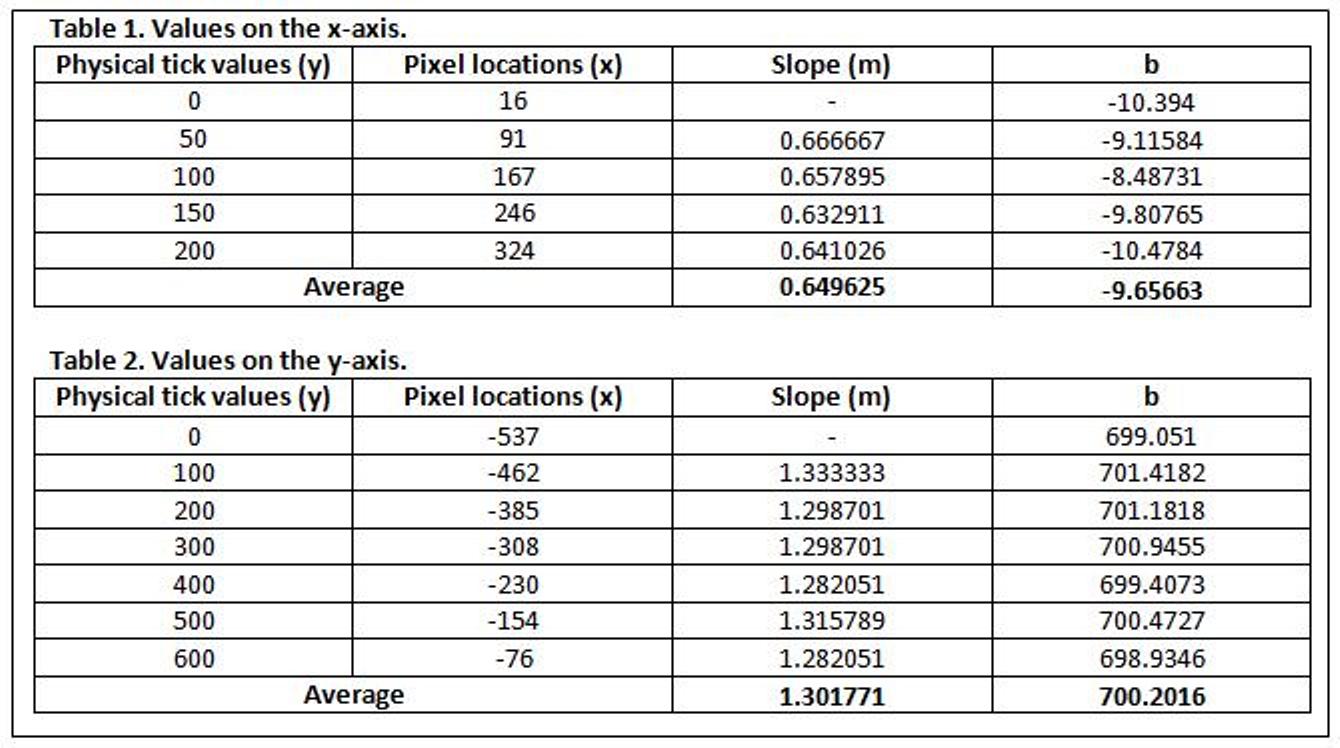
Next thing to do was to acquire more pixel locations (x) of the points in the plot. Using the m and b values above, the equivalent physical values (y) for x-axis and y-axis were then obtained. The following image shows the reconstructed graph superimposed on the actual graph.

- Superimposed scanned and reconstructed plots. The orange line shows the reconstructed plot overlapping the original scanned plot.

Self evaluation
I would like to give myself a score of 10 since I was able to reproduce the graph accurately. Furthermore, the images were clear and easily understandable.
 image processing